
VMware Fusion
How to set up Ombra with VMware Fusion on an Apple Silicon Mac
· 8 min read
In short: Ombra runs as two virtual machines on an Apple Silicon Mac. Download the gateway and desktop archives, check them against the published checksums, unzip them into your Virtual Machines folder, open each in VMware Fusion, start the gateway first and then the desktop, and set your disk passphrase and password on first use. Budget about 45 GB of free disk and roughly twenty minutes, most of it download time and the one-off disk encryption.
This guide covers the VMware Fusion route. If you use UTM instead, follow Set up Ombra with UTM. Both routes give you the same two machines.
What you need
- A Mac with Apple Silicon (M1 or newer). Ombra is built for arm64 and does not run on Intel Macs.
- VMware Fusion installed on that Mac (VMware's Fusion page has the download; Step 1 walks through it).
- About 45 GB of free disk. The downloads are about 7 GB for the desktop and 0.7 GB for the gateway, and you need room for the archives plus the unzipped copies until you delete the archives. The virtual disks are 5 GB (gateway) and 30 GB (desktop), and the desktop disk grows to its full size during first-use setup.
- A passphrase you will remember. It unlocks the desktop's encrypted disk every time you start it, and it cannot be recovered if you forget it.
Step 1: Install VMware Fusion
If VMware Fusion is already installed and runs on your Apple Silicon Mac, skip to Step 2.
- Open the Fusion page on VMware's site: VMware Fusion. VMware is now part of Broadcom, which hosts the Fusion download, so the page leads you to Broadcom's download portal and may ask you to sign in. Choose a current Fusion release that supports Apple silicon.
- Open the downloaded disk image and run the installer.
- When macOS asks for permissions during or after installation, approve them under System Settings → Privacy & Security. Fusion cannot start virtual machines until you do.
- Open VMware Fusion once and accept its prompts, so it is ready before you import Ombra.
You do not need to create a VM in Fusion yourself: the Ombra archives contain ready-made machines.
Step 2: Download the archives
Go to the install page and, in the VMware Fusion section, download the Gateway and Desktop archives. Also download SHA256SUMS.txt into the same folder. The files are named like this:
ombra-gateway-arm64-v1.1.0.vmwarevm.zip
ombra-desktop-arm64-v1.1.0.vmwarevm.zip
SHA256SUMS.txt
Use the VMware Fusion pair together. Do not mix a Fusion archive with a UTM one.
Step 3: Verify the downloads
Open Terminal, change to the folder that holds the downloads, and run:
shasum -a 256 -c SHA256SUMS.txt --ignore-missing
Every file you downloaded must report OK. If any line says FAILED, delete that file and download it again. Do not open an archive that fails the check.
Step 4: Unzip and move the VMs into place
Double-click each zip in Finder to unpack it. Each one produces a .vmwarevm folder. Move both folders into ~/Virtual Machines.localized/, then double-click each .vmwarevm to open it in VMware Fusion.
If Fusion asks whether you moved or copied the VM, choose I Moved It. Nothing needs changing in the VM settings, so leave the hardware as it is.
Step 5: Start the gateway first
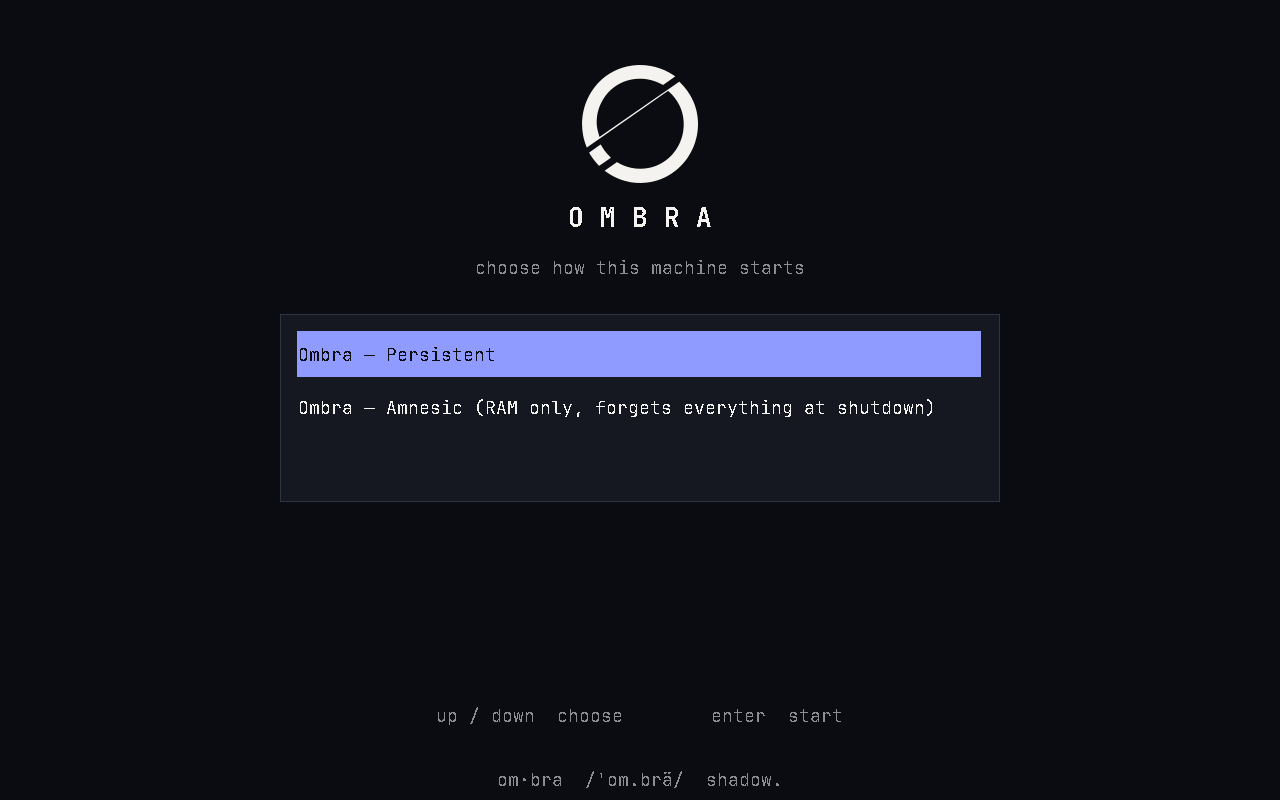
Power on the gateway. It starts at an Ombra boot menu with two entries and waits for your choice; nothing starts on its own.
- Amnesic runs the system from RAM. Everything written since power-on, including Tor state and your files, is gone at shutdown. The gateway highlights this first.
- Persistent writes to the disk normally. Updates need Persistent mode.
Pick a boot mode and wait until the gateway console shows its health report. The gateway is a headless Tor router: it has no login or setup screen of its own, and it is the only machine with a route to the internet.
Step 6: Start the desktop and pick Persistent
Power on the desktop once the gateway is up. At the boot menu choose Persistent. First-time setup only runs in Persistent mode; in Amnesic mode the first-use screen just asks you to restart in Persistent.
Step 7: First-use setup
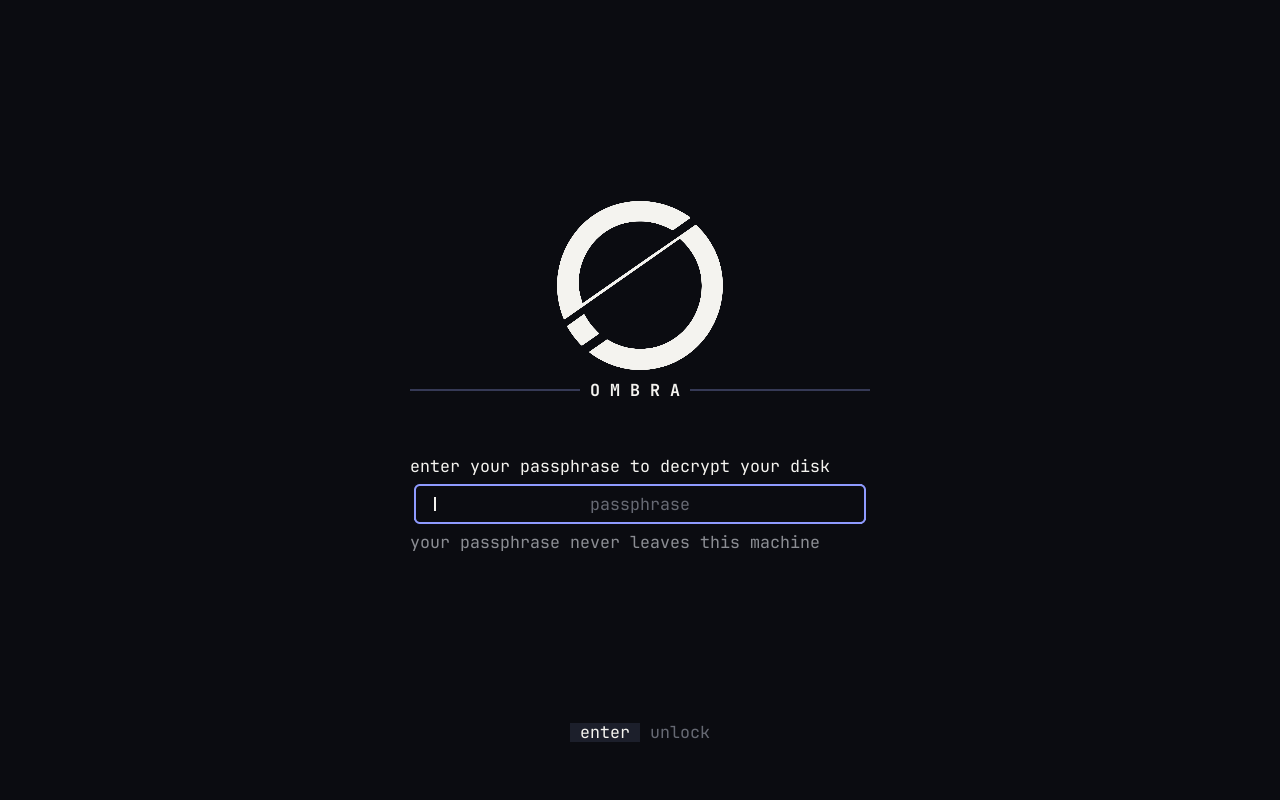
The disk unlock first accepts a public build passphrase. That is intentional: it only ever opens a machine that has not been set up yet. The first-use screen then takes over the console:
- Choose your real disk passphrase.
- Choose your user password.
- Wait while Ombra re-encrypts the whole disk under a new key. This takes a few minutes on the 30 GB disk. Do not power off or restart during it. If it is interrupted, the next boot shows a Resume screen that asks for your passphrase and finishes the job.
Once the disk is sealed, the machine restarts. From then on you unlock it with your own passphrase, then log in with your user password. Neither machine has a default login password.
Step 8: Check that you are on Tor
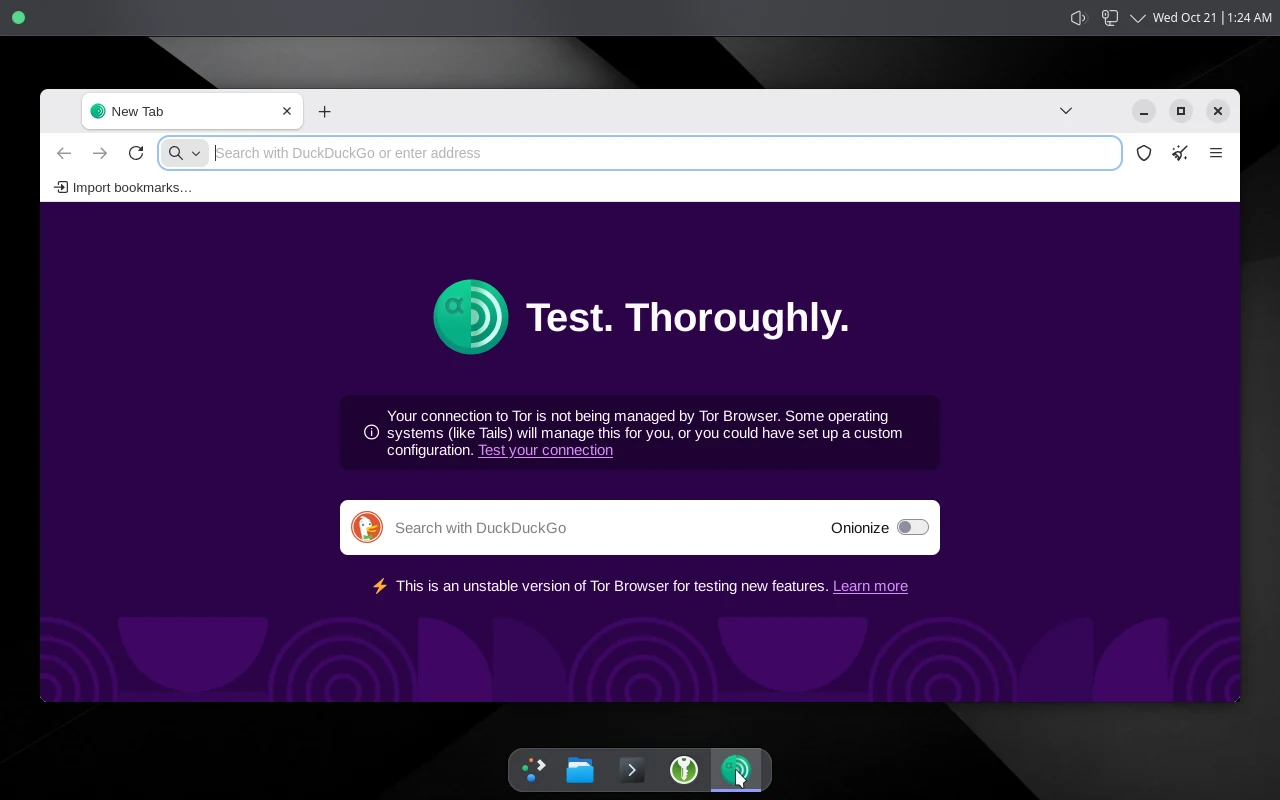
Open Tor Browser on the desktop. The desktop has a single network connection and its only peer is the gateway, so everything it does online goes through Tor. If the gateway or Tor goes down, the desktop loses its network instead of leaking.
Everyday use
- Start the gateway first, then the desktop, every time.
- Updates arrive in place and only when you ask: open Update Ombra from the desktop menu. Both machines check a small signed index through Tor, and updates need Persistent mode.
- Only the latest release is supported. Version 1.1 and later update in place; version 1.0 has no updater and needs a fresh download.
What Ombra does and does not protect
Ombra keeps your network identity from depending on the desktop software behaving correctly, and it protects data on the disk if someone gets the disk without your passphrase. It does not protect you from a compromised Mac: malware on macOS can read the VM's memory and keystrokes. Read the threat model before you rely on it.
FAQ
How much disk space does Ombra need on VMware Fusion?
Plan for about 45 GB free. The downloads are about 7.2 GB together, the virtual disks are 5 GB (gateway) and 30 GB (desktop), and you need room for the archives and the unzipped copies until you delete the archives.
Does Ombra run on an Intel Mac?
No. Ombra is built for arm64 and needs an Apple Silicon Mac.
Which VM do I start first?
The gateway. It is the desktop's only route to the network, so start it, let it reach its health report, and then start the desktop.
Why does Fusion say "I Moved It" or "I Copied It"?
Fusion asks when it opens a VM from a new location. Choose I Moved It. Nothing needs changing in the VM settings.
What if the Mac runs out of space during setup?
Fusion stops the VM with a "no space left" prompt. Free some space and choose Retry. First-use setup grows the desktop disk to its full 30 GB, so keep the room free until it finishes.
Can I use the old OVA files from version 1.0?
No. An OVA cannot carry the ARM guest type, so Fusion on Apple Silicon refused to start an imported OVA. Version 1.1 ships as .vmwarevm archives, which keep it.